Overview
Agency workers spend significant time on documentation, including writing case notes and completing forms. Binti Scribe helps reduce that administrative work by using Binti AI to turn recordings, conversations, notes, and other source materials into drafts that workers can review and use in Binti.
With Binti Scribe, workers can:
- Upload existing source materials, such as audio recordings, documents, or notes.
- Record directly in Binti when documenting an in-person conversation or visit.
- Draft case notes from the information provided.
- Populate form answers using information found in uploaded files or recordings.
- Complete both case notes and form answers from the same source materials.
All AI-generated content is available for workers to review and edit before it is finalized.
Fill Forms is now Binti Scribe
Fill Forms has been renamed Binti Scribe. The new name reflects the tool's expanded capabilities and its focus on helping workers draft documentation more efficiently with AI.
Only the name and look are changing. Existing drafts, saved work, and permissions carry over automatically, and no action is required from your team.
You'll now see Binti Scribe in several places throughout Binti, including:
- The Binti Scribe navigation button at the top of the page
- Binti Scribe Drafts on the homepage, including a unified Items to Review count
- Completion emails
- The Binti Scribe feature page
How Binti Scribe Works
Binti Scribe can use recordings and uploaded source materials to help with two common documentation tasks.
Drafting Case Notes
- Workers can record directly in Binti or upload existing source materials. Binti Scribe uses that information to generate a structured case note with headings and logical sections.
- Workers review the draft for accuracy, make any necessary changes, and save the case note when ready.
Filling Out Forms
- Workers can record a conversation or voice memo, or upload recordings, notes, or other supported files. Binti Scribe identifies relevant information from those materials and uses it to draft answers to applicable form questions.
- Workers review and confirm the suggested answers before accepting them.
Completing Both Tasks
- Workers can also choose to create a case note and populate form answers from the same source materials.
- Note: If you will be in an area with a poor signal or find it easier to record quickly on your mobile device, you can upload a previously recorded conversation, voice memo, or a file from your desktop or mobile device instead of recording directly in Binti.
Upload Files or Audio Recordings to Binti Scribe
- Log into Binti at family.binti.com using your email and password or your agency's SSO.
- Click Binti Scribe in the header.
- Search for a caregiver.
Note: Only primary caregivers can be found at this time.
*Please note that the 'Not associated with a person in Binti' checkbox will only show if you have access to Binti Scribe outside of Binti's Licensing module. - Select "I have a file to upload (pre-recorded conversation, handwritten notes, etc.)" and click Next.
- Choose what you want Binti Scribe to create from your source materials, then click Next.
Note: If you select "Fill out form(s)," you'll be prompted to choose the form you want Binti Scribe to complete. - Select or drag and drop the file or files you would like Binti Scribe to use, then click Submit.
Tip for working with multiple source materials
If your documentation comes from multiple sources, gather and upload all related materials together whenever possible.
For example, if you're completing a two-part home study, gather the recordings and notes from both sessions and submit them to Binti Scribe together. This allows Scribe to draft from the complete set of information rather than processing each part separately on different days.
Record Directly in Binti Scribe
Before recording, keep the following in mind:
- Do not record Zoom, Microsoft Teams, or Google Meet calls directly through Binti Scribe. Binti can capture your microphone but may not capture the other participant's audio. Instead, use the video conferencing platform's built-in recording functionality and upload the resulting recording to Binti Scribe.
- For longer recordings, consider using your phone's voice memo application as a backup in case your internet connection is interrupted.
To record:
- Log into Binti and open Binti Scribe from the header.
- Search for the caregiver you are documenting.
*Please note that the 'Not associated with a person in Binti' checkbox will only show if you have access to Binti Scribe outside of Binti's Licensing module.
- Select "Start a new recording directly in Binti" and click Next.
- Choose what you want Binti Scribe to create from your source materials, then click Next.
-
When you're ready, select Record Audio.
- Place your device where it can clearly capture the people speaking.
- Begin your conversation
-
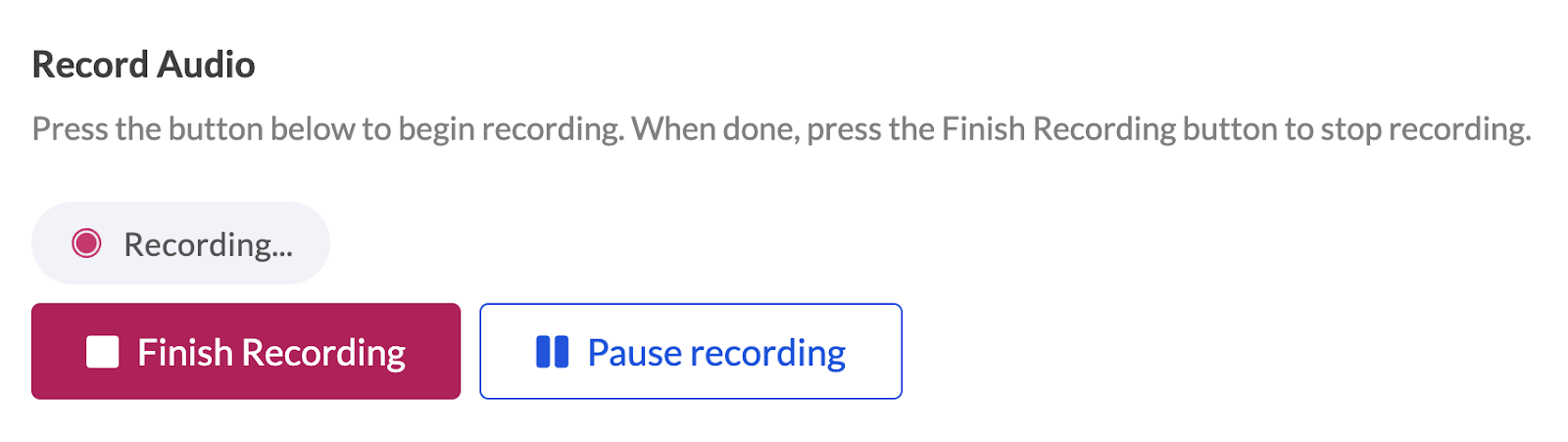
You can select Pause Recording at any time and continue when you're ready.
- When finished, select Finish Recording.
- Play back your recording to confirm you'd like to use it. If needed, select Re-do Recording to start again.
- Once you're satisfied with the recording, select Next.
Create a Case Note or Form Answers
At the end of the Binti Scribe workflow, choose what you'd like Binti to create from your source materials.
- You can select one or both of the following:
-
Create a case note
Binti Scribe will use the source materials to draft a case note for you to review. -
Have AI fill form answers
Binti Scribe will identify relevant information from the source materials and draft responses to applicable form questions.
-
Create a case note
- After submitting your selection, you'll return to Binti Scribe Drafts, where you can monitor and review your generated content.
Shorter recordings may process within a few seconds, while longer recordings or files may take several minutes.
Once processing is complete, use the available Review Links to open your case note or form.
Tip: To review the original source information associated with a draft, select Transcription Details from the Actions column.
Reviewing Case Notes
Once Binti Scribe has finished drafting your case note:
- Select the case note from Review Links.
- Review the AI-generated draft. Binti Scribe organizes case notes into structured sections and headings based on the content of the source materials
- If needed, you can:
- Change the case note type, date, or contact method.
- Edit or add information.
- Reorganize the draft.
- Select View full transcript here to review the original word-for-word transcript when available.
- Select Update Case Note when you're satisfied with the content.
Updating the case note marks the draft as Reviewed.
Reviewing Case Notes
Important: Review every AI-generated answer before accepting it. Binti Scribe is designed to assist with drafting, while the worker remains responsible for confirming the accuracy of the information.
- Look for the Binti AI icon indicating that Scribe found relevant information and generated a suggested response.
- Select a section containing AI-generated answers to review the suggestions.
- Review each response and either:
- Edit the response as needed, or
- Select "I confirm this answer was transcribed correctly."
- Continue reviewing the generated responses before completing the form.
Binti Scribe helps reduce the time spent turning conversations and source materials into documentation, while keeping workers in control of reviewing and finalizing the information.
Frequently Asked Questions
In the past, recordings could be lost if submitted without service. Now, Binti automatically saves your transcription as soon as it’s complete, ensuring it can safely upload once your connection is restored.
You’ll receive a confirmation when the upload begins and another when it’s successfully submitted.